API Configuration
Keys are stored in your browser's localStorage and sent only to the respective provider APIs. Nothing else.
⚙️
General Preferences
How often the dashboard should automatically refresh data in the background.
💾
Import & Export
Backup or restore configuration
⬇ Export Configuration
Downloads all configured API keys and your current dashboard layout as a .json file. Store
it somewhere safe — it contains secrets.
⚠ The exported file contains your API tokens in plain text. Treat it like a
password file.
⬆ Import Configuration
Select or drag-and-drop a previously exported OpsGrid .json file. You'll see a preview
before anything is applied.
Click or drop a file here
Accepts opsgrid-config.json
✓
Hetzner Cloud ✓
To configure Hetzner Cloud monitoring, generate a read-only API token:
- Create a read-only API token by visiting the Hetzner Cloud Console ↗
- Navigate to your Project → Security → API Tokens and click Generate API Token
- Paste the generated token in the input field below
Generate at: console.hetzner.cloud → Project → Security → API Tokens
(Read Only is sufficient)
Cloudflare ✓
To configure Cloudflare analytics and R2 storage monitoring:
- Create a read-only API token at the Cloudflare API Tokens Panel ↗ using the Read All Resources template
- Locate your 32-character Account ID on your Cloudflare Dashboard ↗ home page (right sidebar)
- Locate your Zone ID under the Overview tab of the specific domain you wish to monitor
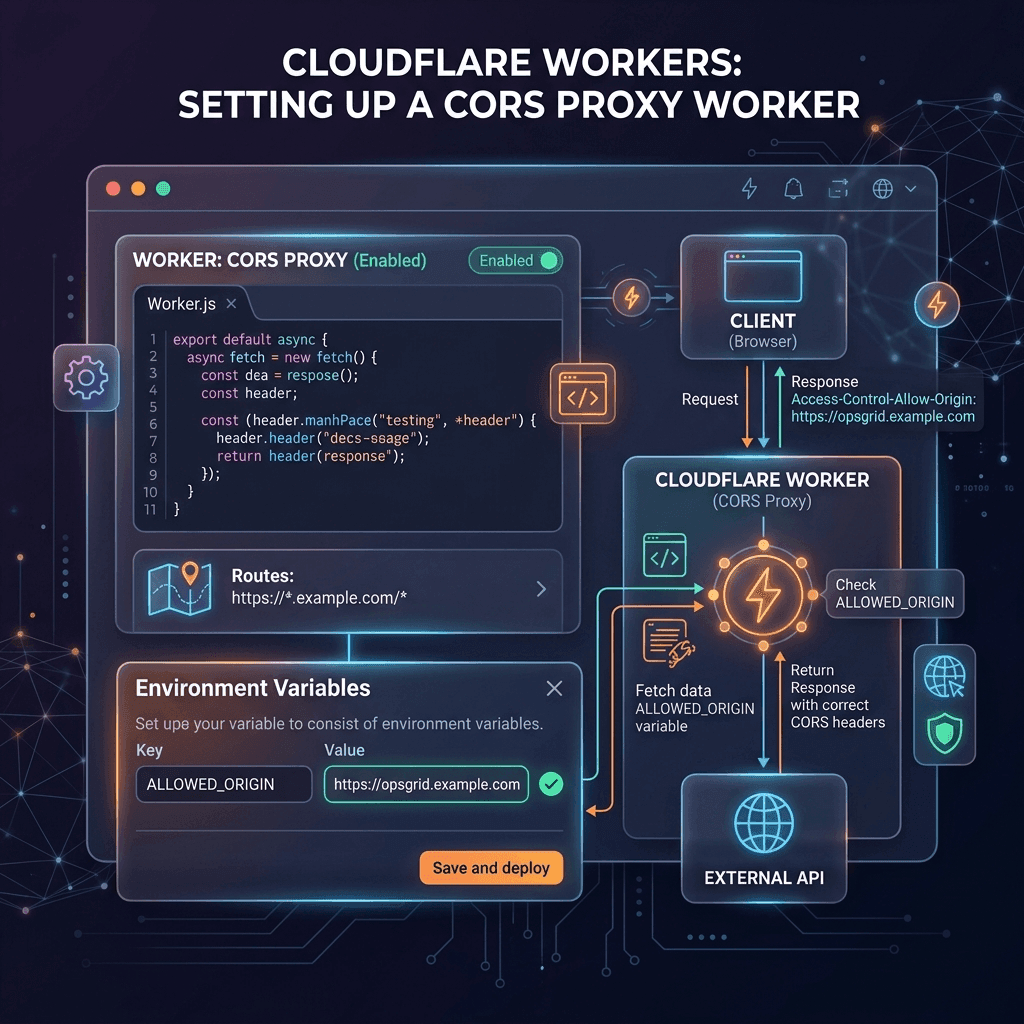
- Deploy the CORS proxy from
workers/cf-proxy-worker.jsto a Cloudflare Worker ↗ and paste the URL below
Dashboard → My Profile → API Tokens → Create Token → Read All Resources
template
Dashboard → right sidebar under "Account ID"
Dashboard → select a domain → right sidebar "Zone ID". Required for Web Analytics widget.
Cloudflare & Turso APIs block direct browser requests. Deploy
workers/cf-proxy-worker.js
from this project to a
Cloudflare Worker,
then paste the Worker URL here.
Google Search Console ✓
To configure Google Search Console tracking:
- Visit the Google Cloud Console ↗ and create a new project
- Enable the Google Search Console API in the API Library
- Go to APIs & Services → Credentials → Create Credentials → OAuth Client ID (Web Application)
- Add your OpsGrid URL (e.g.
http://localhost:8080or your hosted domain) as an Authorised JavaScript Origin - Paste your generated Client ID and enter your Property URL below, then click Connect Google Account
console.cloud.google.com → APIs & Services → Credentials → Create Credentials → OAuth
Client ID → Web Application.
Add your OpsGrid URL (e.g.
Enable the Google Search Console API in the Library first.
Add your OpsGrid URL (e.g.
http://localhost:8080 or your hosted domain) as an
Authorised JavaScript Origin.Enable the Google Search Console API in the Library first.
Exact URL property or domain property from Search Console. Domain properties use the
sc-domain: prefix.
Google Analytics ✓
To configure Google Analytics 4 (GA4) reporting:
- Open the Google Cloud Console where you created your OAuth credentials
- Enable the Google Analytics Data API (v1beta) in the API Library
- Retrieve your GA4 Property ID (numeric only, e.g.
123456789) from the Admin panel under Property Settings on your Google Analytics Dashboard - Make sure you connect your Google Account in the Search Console section above (it grants the Analytics scope automatically)
Found under: Google Analytics → Admin → Property Settings (numeric property ID)
Coolify ✓
To configure self-hosted Coolify application monitoring:
- Log into your Coolify instance, go to Account Settings → API Tokens and click Create New Token
- Paste your Coolify URL (without a trailing slash) and your generated token in the inputs below
The base URL of your self-hosted Coolify instance (no trailing slash)
Coolify → Account Settings → API Tokens → Create New Token
Vercel ✓
To track deployments and projects on Vercel:
- Generate a Personal Access Token in the Vercel Tokens Console ↗
- If you are managing projects within a Vercel Team, retrieve your Team ID from your
Vercel Dashboard URL (it begins with
team_...) - Paste your token and optional Team ID in the input fields below
Generate at: vercel.com/account/tokens
Required only if querying team projects. Under your team settings or URL path (starts
with team_)
GitHub ✓
To track commits and notifications from GitHub:
- Create a token by visiting GitHub Developer Settings ↗ (Classic classic token with
repoandnotificationsscopes) - Paste your token below and specify repositories as
owner/repostrings, separated by commas
Generate at GitHub → Settings → Developer Settings → Personal Access Tokens
Required for latest commits. Example:
octocat/Hello-World, facebook/react
Turso Database ✓
To monitor Turso SQLite databases:
- Generate an API token using the Turso CLI:
turso auth api-tokens mintor visit the Turso Console ↗ - Retrieve your Organization Slug (your account username or organization name on Turso)
- Note: Turso calls require the CORS Proxy URL under the Cloudflare section to be configured
Generate using Turso CLI:
turso auth api-tokens mintYour Turso organization name or personal account username. Note: Turso requires the
CORS proxy URL above to be configured.
OpenRouter ✓
To track your LLM credit balance, key labels, and limits on OpenRouter:
- Generate an API key on the OpenRouter Keys Page ↗
- Copy and paste your generated API key below to query credits remaining and rate limits
Generate at: openrouter.ai/settings/management-keys
Google Stitch ✓
To pull your AI-native design projects from Google Stitch:
- Log into Stitch Settings ↗
- Under the API Keys section, click **Create key** and copy it
- Paste your Stitch API Key in the field below to monitor active prototypes and generated code
Generate at: stitch.withgoogle.com/settings